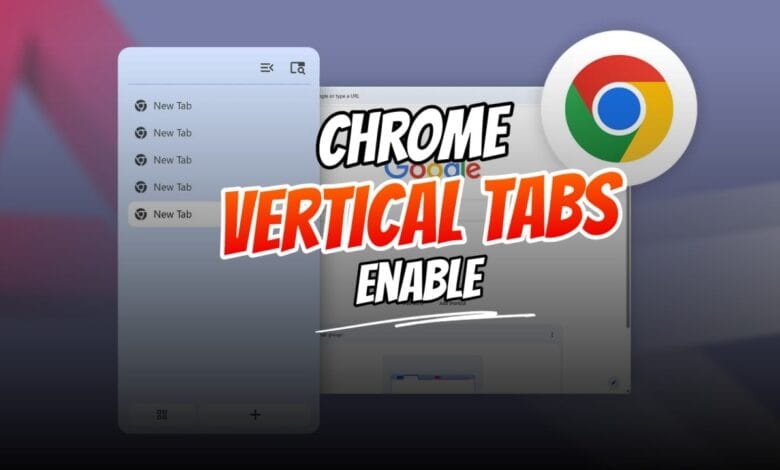
If you are a power user who constantly browses the web with dozens of pages open at the same time, you already know the struggle of a cluttered workspace. As your tab count grows on a traditional horizontal layout, the tabs shrink down until you can no longer read the titles or even see the website icons.
Fortunately, Google is finally catching up to browsers like Microsoft Edge by offering a built-in vertical sidebar for your tabs. If you want to know how to enable Vertical Tabs in Chrome, you are in the right place.
Google has begun gradually rolling out this feature in Chrome version 147. Because the rollout is gradual, you might need to manually force the feature to appear.
In this comprehensive guide, we will walk you through exactly how to enable Vertical Tabs in Chrome, why you should make the switch, and how to manage your new browsing layout.
Why You Should Enable Vertical Tabs in Chrome
Before diving into the steps, you might be wondering why you should change the way you have been browsing for years. Here is why the vertical layout is a game-changer for productivity:
- Better Use of Widescreen Displays: On modern Windows 11 desktop monitors and widescreen laptops, vertical real estate is precious. Moving your tabs to a dedicated sidebar makes far better use of the available screen space.
- Readable Tab Titles: No matter if you have 5 or 50 tabs open, a vertical sidebar allows you to actually read the full titles of the webpages without constant resizing.
- Superior Multitasking: The vertical layout is explicitly built for heavy multitasking. It helps you stay organized, quickly switch context without losing track of pages, and manage tab groups without friction.
Step-by-Step: How to Enable Vertical Tabs in Chrome
Since Google is rolling out this feature gradually as part of Chrome version 147, it may not be visible in your standard settings menu right away. However, you can easily force-enable the native vertical tabs using Chrome’s experimental “Flags” page.
Follow these steps to enable Vertical Tabs in Chrome:
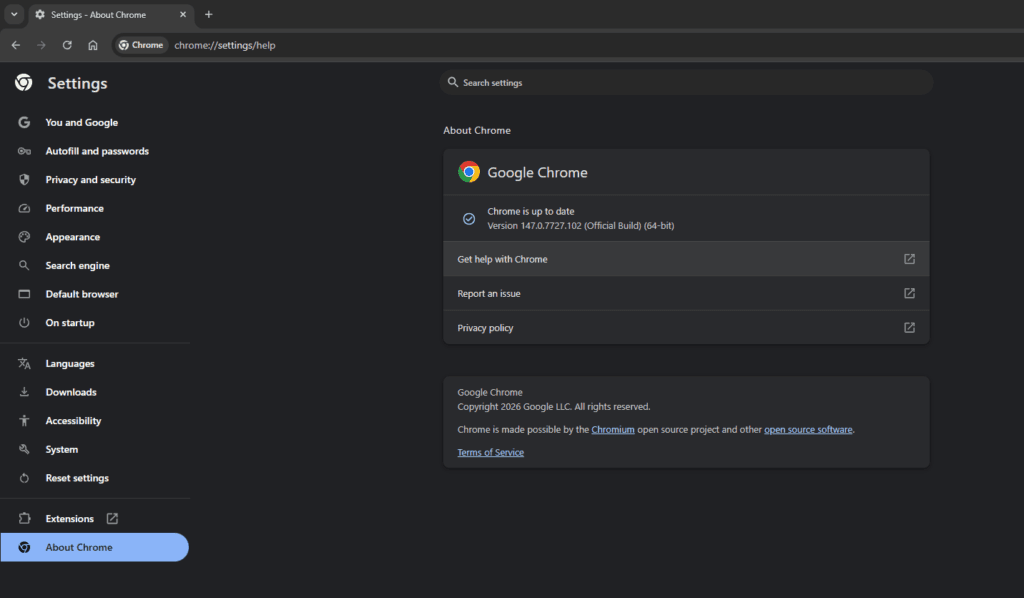
Step 1: Update Google Chrome to Version 147+
Before attempting to enable the feature, ensure your browser is fully up to date.
- Open Google Chrome.
- Type chrome://settings/help into your address bar and press Enter.
- Chrome will automatically check for and download the latest build. Click Relaunch if prompted.
Step 2: Access the Chrome Flags Page
- Open a new tab in Chrome.
- Type the following path directly into your address bar and press Enter:
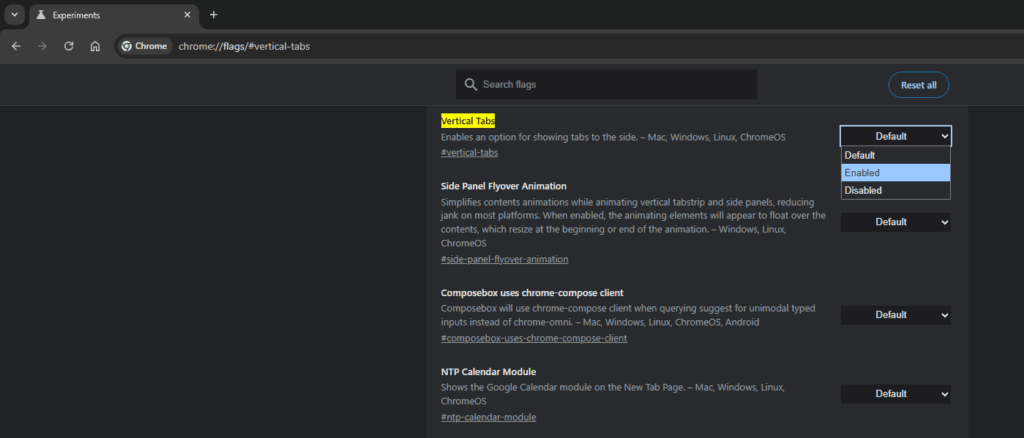
chrome://flags/#vertical-tabs - This will take you to a hidden experimental settings menu, directly highlighting the “Vertical Tabs” feature.
Step 3: Force-Enable the Feature
- Next to the “Vertical Tabs” description, you will see a drop-down menu (usually set to “Default”).
- Click the drop-down menu and select the Enable option.
Step 4: Relaunch the Browser
- Once you select “Enable,” a prompt will appear at the bottom of the screen.
- Click the Relaunch button to restart Chrome and apply the changes.
Step 5: Switch to the Vertical Layout
- Once Chrome reopens, the feature is active, but you still need to toggle the view.
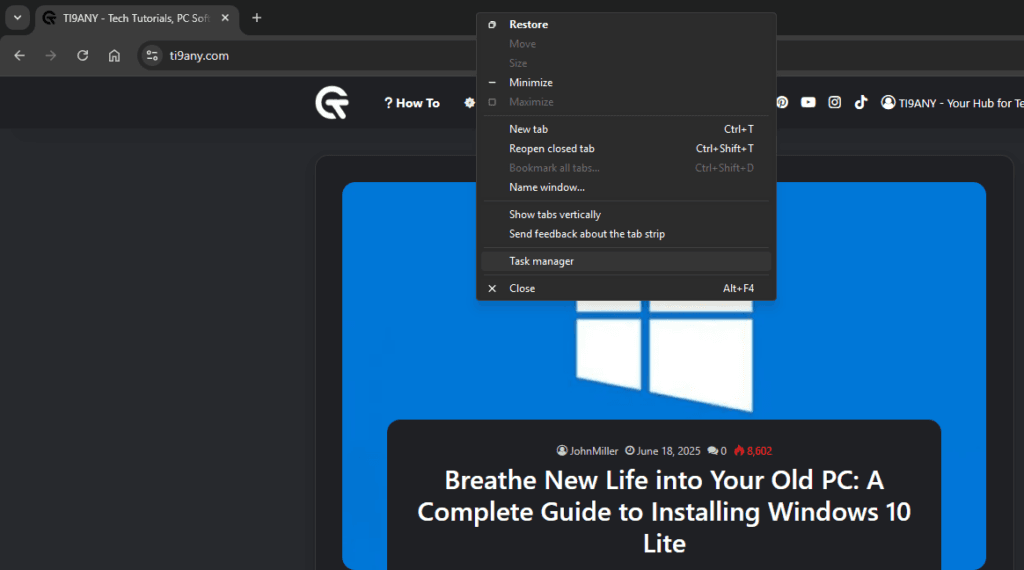
- Right-click on any empty space on the top Chrome window (the tab bar).
- Select the “Show Tabs Vertically” option from the context menu.
- Instantly, your browser layout will shift, moving your open tabs into a sleek sidebar on the left side of your screen.
How to Switch Back to Horizontal Tabs
Trying out a new layout takes a bit of getting used to. If you test out the vertical layout and decide that you prefer the classic top-bar design, reverting is incredibly simple.
At any time, you can right-click the empty space in the Chrome window (or the vertical sidebar) and select the “Show Tabs Horizontally” option. Chrome will instantly switch back to the classic horizontal layout without needing a browser restart.
Frequently Asked Questions (FAQs)
What are vertical tabs in Google Chrome?
Vertical tabs are a built-in feature that moves your open browser tabs from the top horizontal strip into a dedicated sidebar on the left side of the screen. This improves tab visibility and makes it easier to manage dozens of pages at once.
Do I need to download an extension to enable Vertical Tabs in Chrome?
No! While users previously had to rely on third-party extensions, Google has officially integrated native vertical tabs into Chrome version 147. Using the official method is faster, more secure, and better optimized for your computer’s memory.
Why don’t I see the “Show Tabs Vertically” option?
If you are right clicking your tab bar and don’t see the option, it means the feature hasn’t officially rolled out to your default build yet. You simply need to navigate to chrome://flags/#vertical-tabs, set it to Enabled, and relaunch your browser to force the feature to appear.
Conclusion
Browsing with dozens of open tabs no longer has to be a messy, unreadable experience. By taking a few minutes to enable Vertical Tabs in Chrome, you can drastically improve your workflow, declutter your digital workspace, and view your webpage titles at a glance.
Make sure your browser is updated to version 147, activate the Chrome flag, and enjoy a much cleaner, modern way to browse the web!





Is this official way?
Yes, it’s still in beta, but it’s official from Google.